Secure File Sharing
Many people use Diode Collab to securely share files because everything is end-to-end encrypted, never stored on a server, easy to share, and accessible only to people in their Zone.
#Sending Files in Chat from Zone
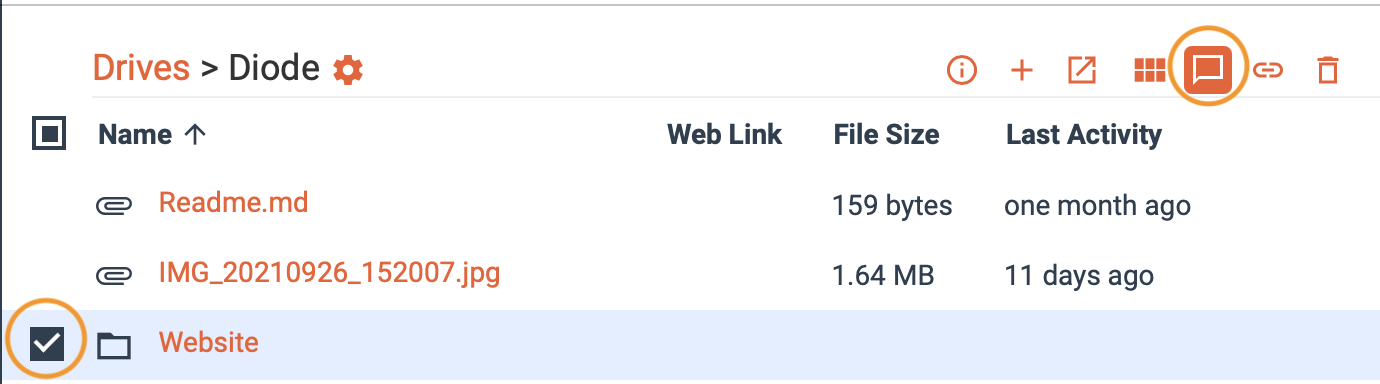
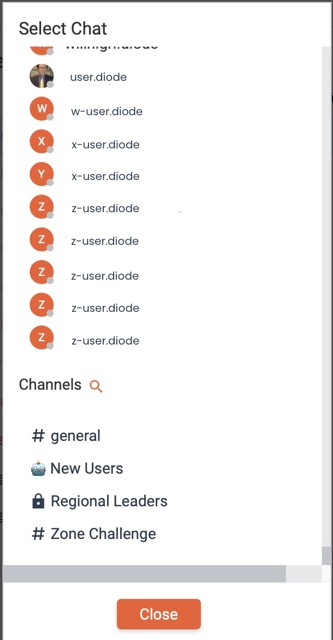
Share any file within your Zone to a channel or DM by selecting the file and clicking on the “chat” icon in the upper righthand corner.
#Sending Files in Chat from Device
Share any file from your device to a channel or DM by selecting the file and clicking on the “paperclip” icon in the lefthand corner of your chat box.

#Manage File Access with Private Drives
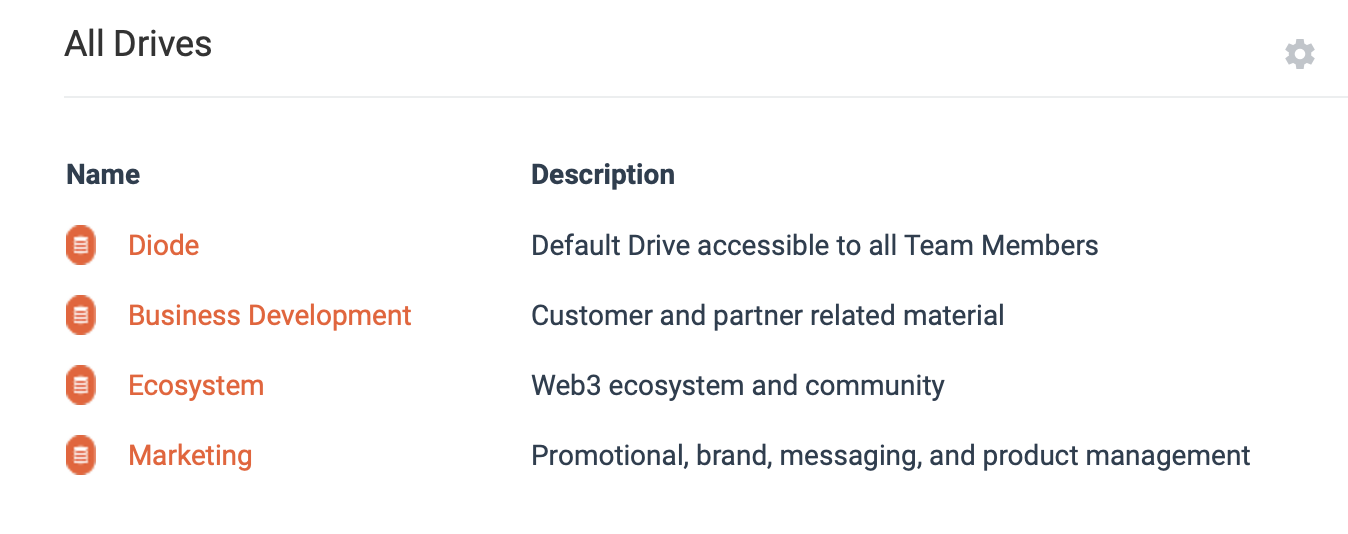
You can narrow down who in your Zone you want to see which files by creating private drives, only allowing certain members to access certain areas of the Zone.
#External Sharing
If someone you want to share a file with doesn’t have Diode Collab, you can easily create a secure share link that opens directly in their browser by selecting the desired file and clicking the paperclip icon in the righthand corner.


#Adding Files
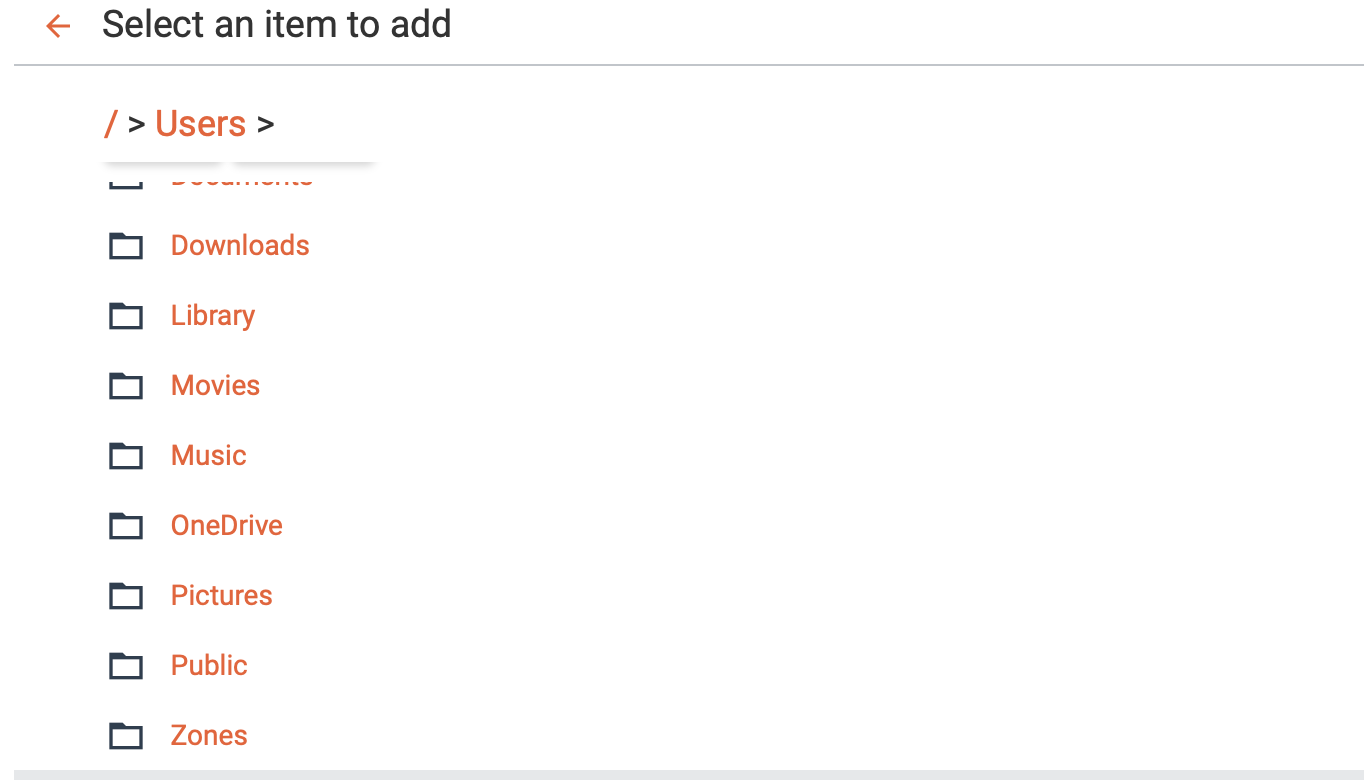
Option 1: Select From +
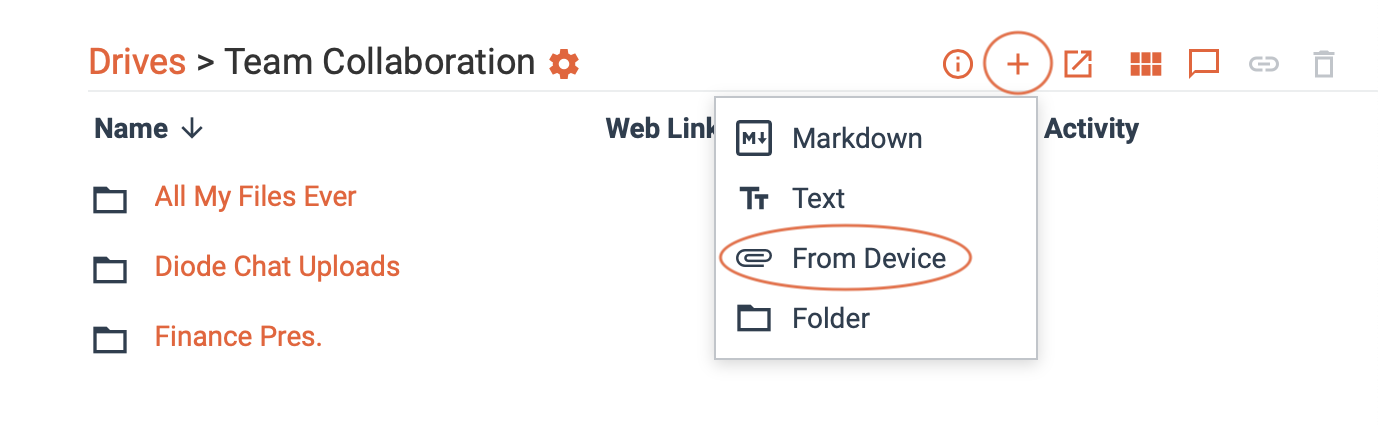
Navigate files you want to upload from your device from here.
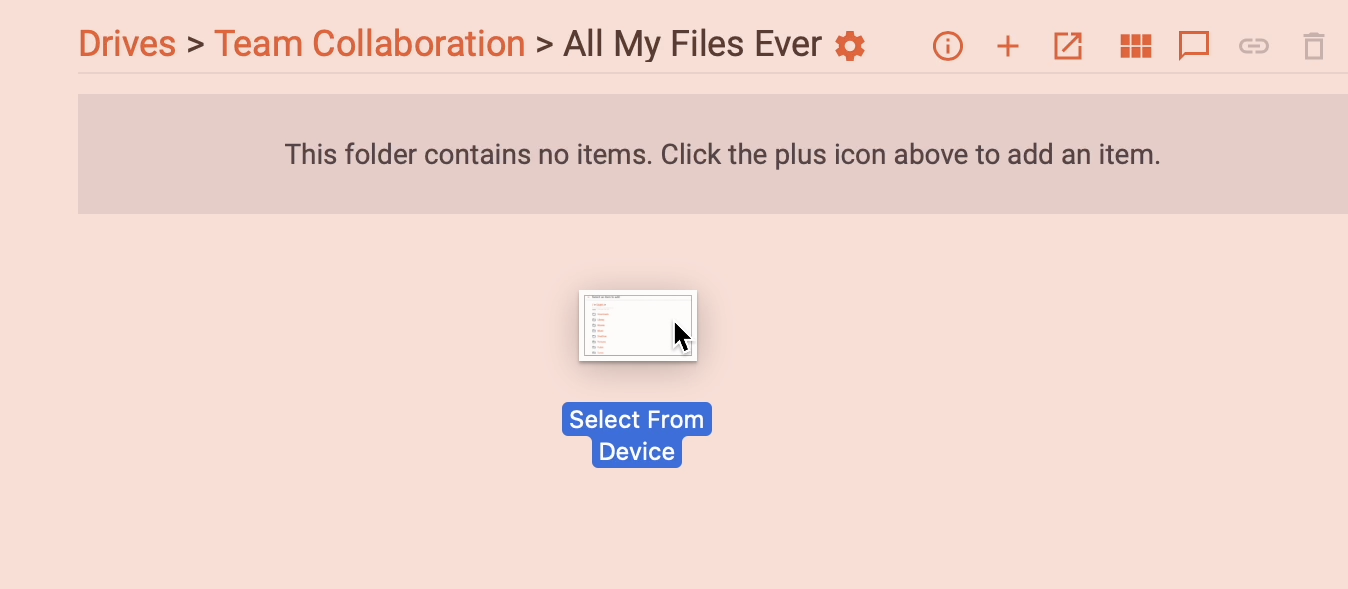
Option 2: Drag & Drop
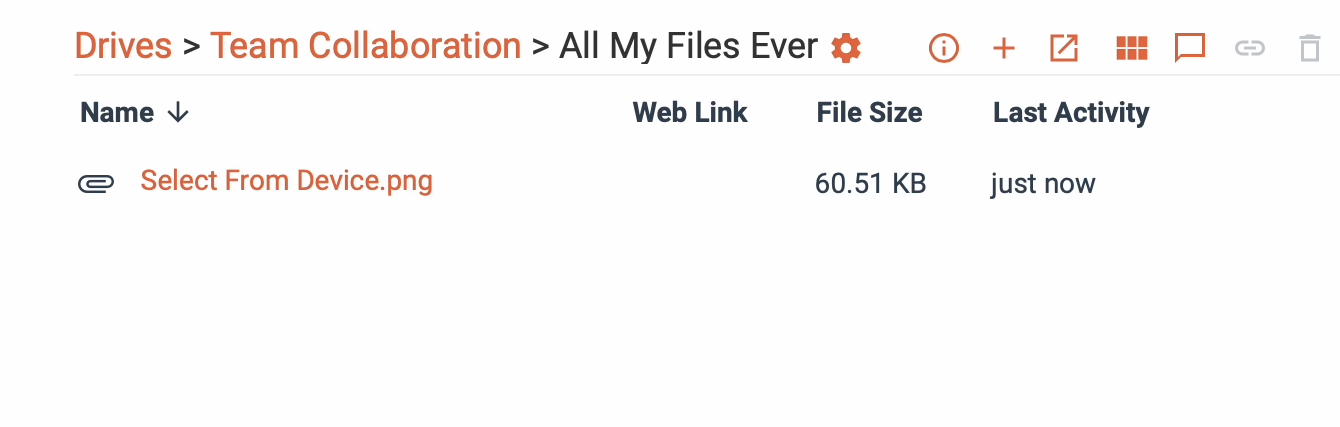
Select the file you want to put in your Zone from your device, and drop it into the folder you want.
#What’s Available to Different Plans
| Plan | Description |
|---|---|
| Nomad | Share securely across all your linked devices. Ideal for syncing passwords, notes, and personal information. |
| Group | Admins can upload and share unlimited files with members. Members can access and use shared files, but cannot upload or add new files themselves. |
| Team+ | Full file sync control. Manage who can sync files, set member permissions, and access all Group features with advanced sharing and admin options. |