Delete a Zone
This article describes how to delete a Zone to your Diode Collab.
A Zone is a collection of Team Members and files/folders. Team members can collaborate real-time on the files in the Zone and can interact with each other via chat.
These instructions assume that you’ve already installed Diode Collab. Follow the steps below to delete a Zone.
1. Remove all members
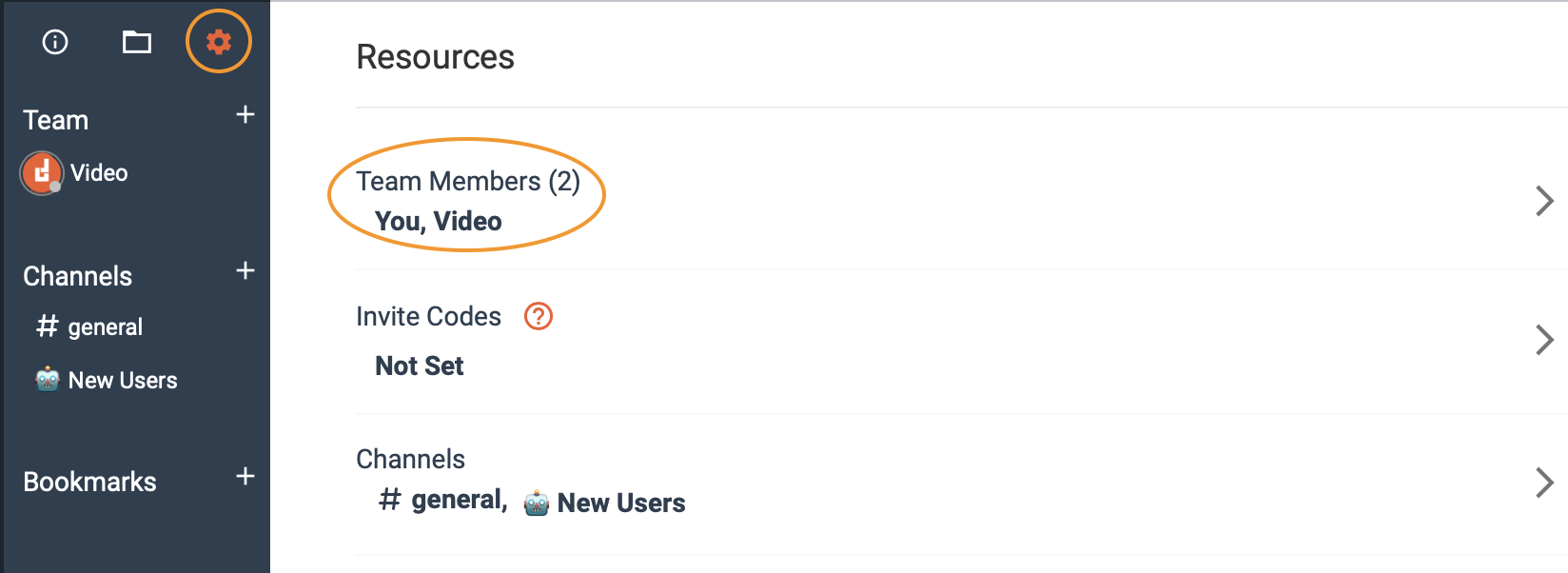
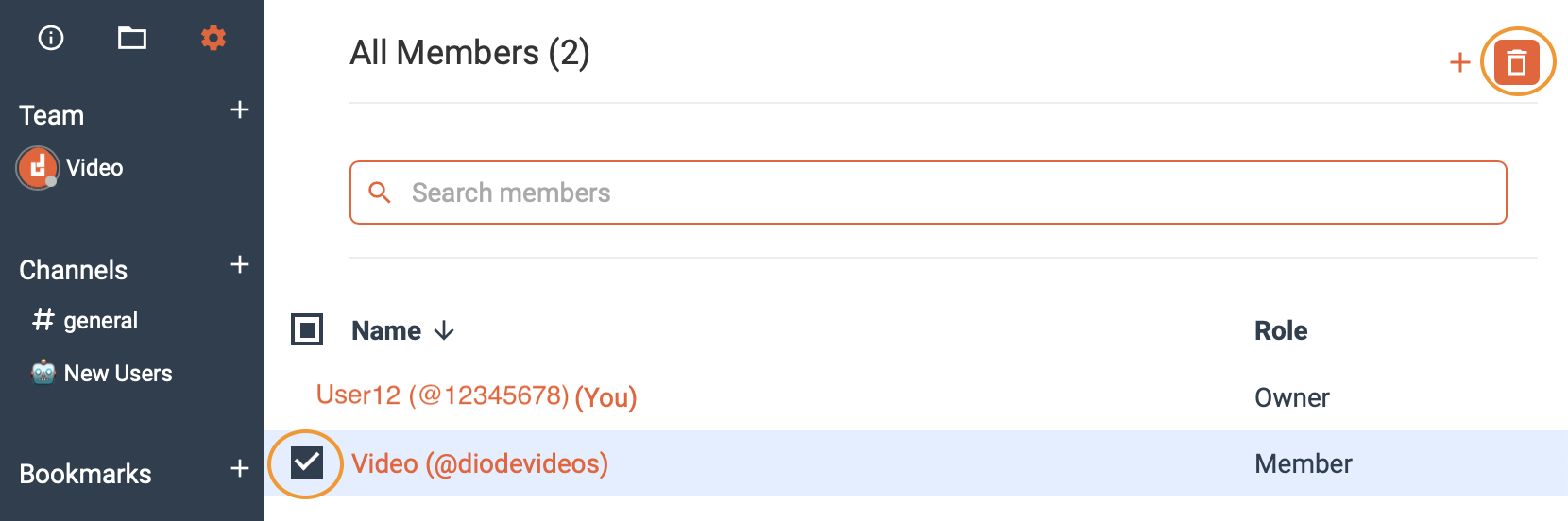
You have to first remove all members from your Zone before you delete your Zone, otherwise you are leaving an empty Zone with no ownership capabilities. Do this by navigating to the Zone’s settings, selecting “Team Members” under the “Resources” category, click on the the team member(s) you wish to delete, and then clicking the “trash” icon.
2. Select “Leave Zone”
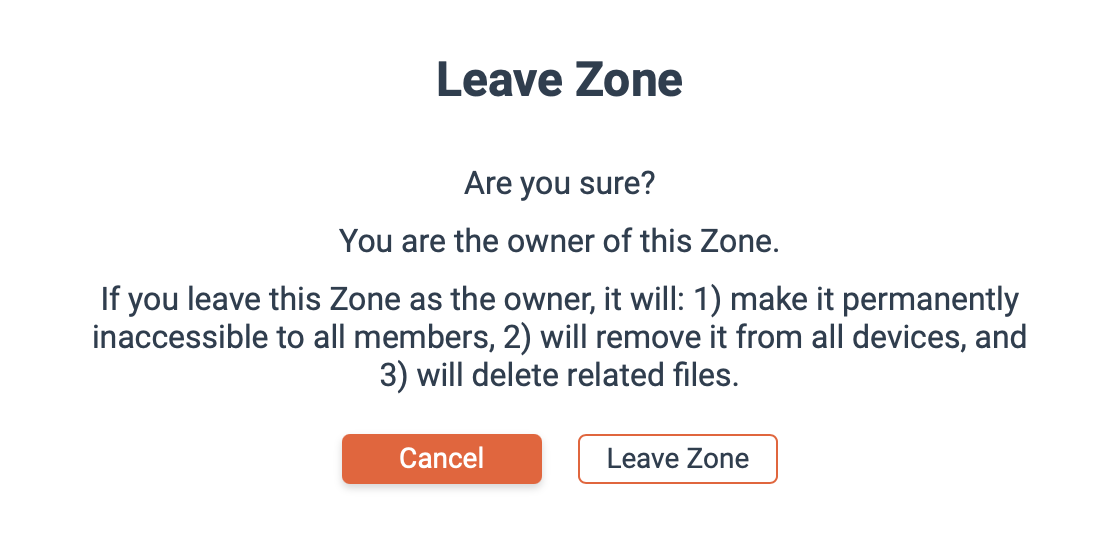
Go back into the Zone’s settings, scroll down to the “Zone Membership” section, and click “leave zone,” then, confirm. This will make it inaccessible to all members, remove the Zone from all devices, and will delete the files within the Zone.

Getting-started articles: